
Dual Display Ergonomics: Position Your Laptop Stand
By Maya Okafor • 27th Mar
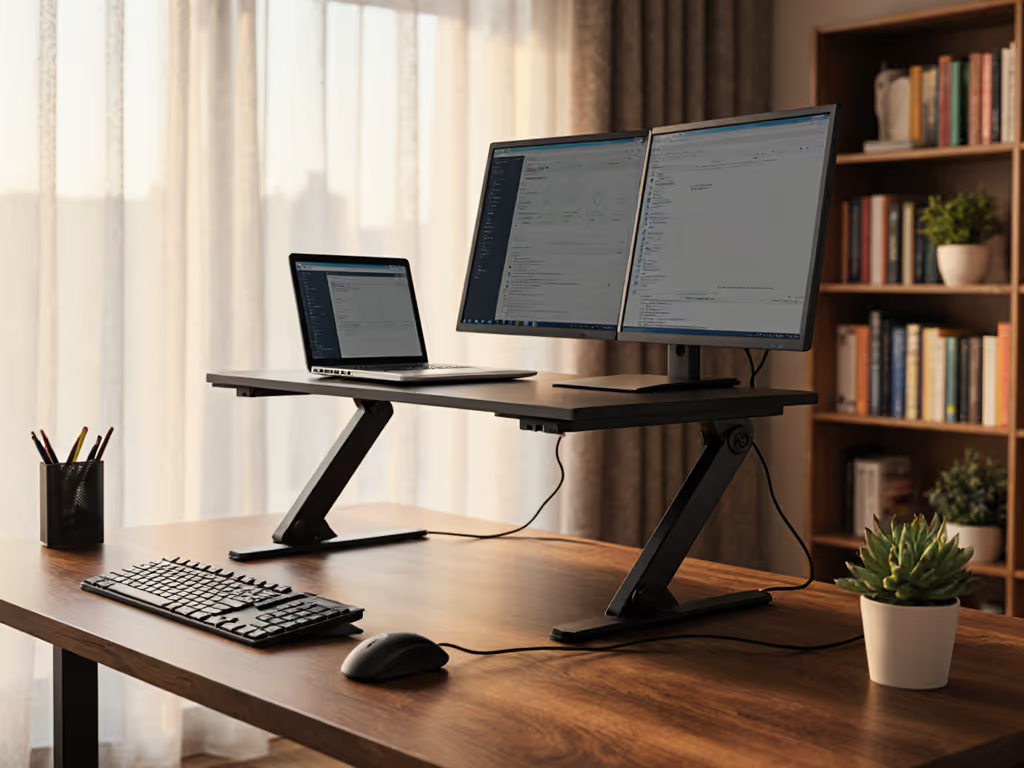
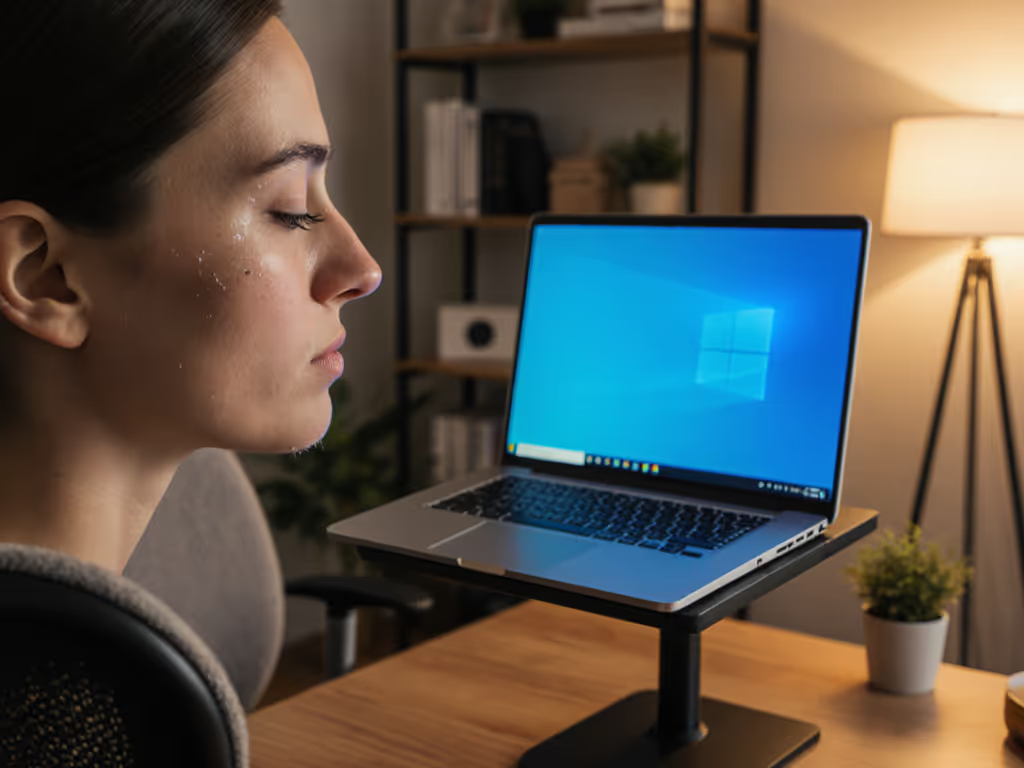
Working with both a laptop stand desk setup and a secondary monitor introduces new geometry challenges that many remote workers overlook. Unlike a single-screen workspace, dual displays demand deliberate secondary screen positioning, and your laptop as a secondary display must be calibrated in relation to your primary monitor, not in isolation. Start with measurements, not vibes. Find your beginner-friendly fit.
Why Dual Display Ergonomics Matter More Than You Think
The moment you add a second screen, you've multiplied your neck-rotation risk. One monitor placed slightly off-center or your laptop perched at the wrong height forces constant micro-adjustments: tilt left for the primary screen, dip down for the laptop, rotate shoulders. Over an eight-hour workday, these invisible corrections compound into cervical strain, shoulder tension, and fatigue that feels like bad luck rather than preventable geometry.
The fix isn't complicated, but it does require intentional monitor height alignment and a system for measurement. That's where the three-measurement method comes in: desk height, eye level, and screen distance. Measure once, position twice, and your dual setup works for you instead of against you.
FAQ: Positioning Your Laptop Stand in a Dual Display Setup
What is the ideal height for a laptop stand when using a secondary monitor?
Your laptop stand height depends on which monitor is your primary display. In a dual-screen workspace, the screen your eyes return to most frequently (whether it's a 24-inch external monitor or your laptop) should sit at or slightly below eye level[1][2].
Here's the measurement protocol: Sit upright with your back fully against your chair. Close your eyes, relax your neck, and open them. Your natural gaze should land in the top third of your primary screen. Now apply this to your secondary screen. If it's your laptop, the top edge should align with that same visual plane or sit slightly lower[1].
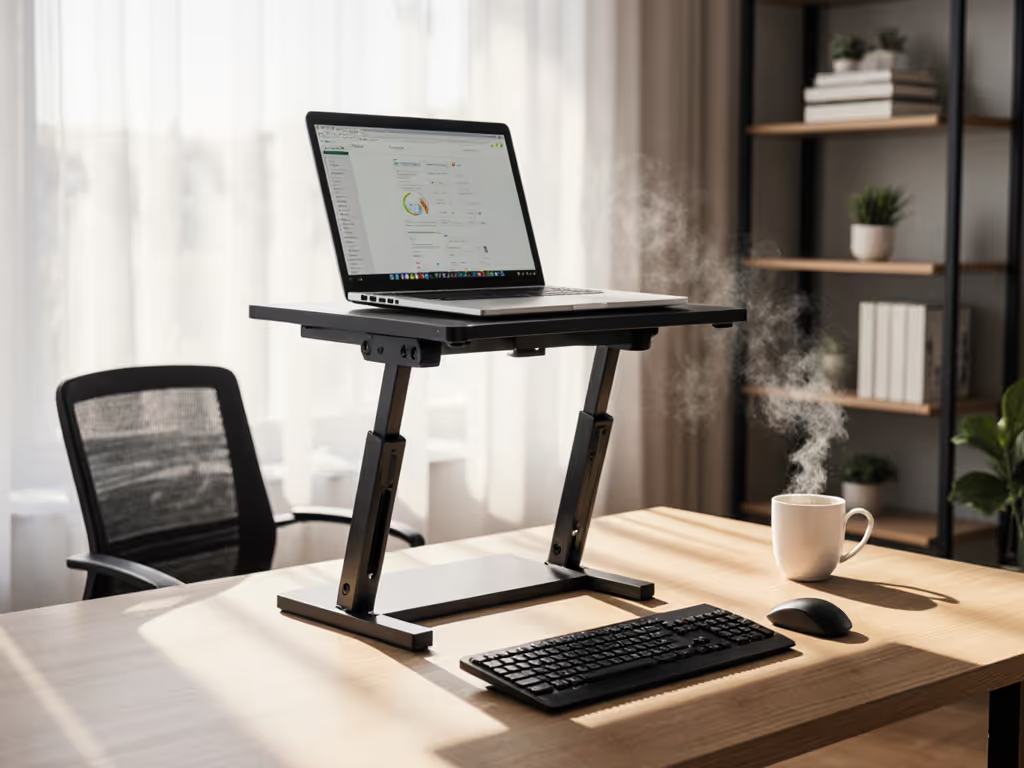
The exact height varies by your stature. Taller individuals (over 6'2") typically need stands that lift the screen 10-12 inches higher; shorter users (under 5'3") may find 4-6 inches of lift sufficient[4]. Adjustable stands are essential because they let you experiment until your spine stays neutral and your shoulders rest naturally away from your ears[4].
If you're using a standing desk, the math shifts: your screen height must remain at or slightly below eye level whether you're sitting or standing. This means either a stand with a 2-4 inch adjustment range, or two separate laptop stands for each posture (an ungainly solution that reveals why height-adjustable designs matter)[3].
How far should your laptop stand sit from your face in a multi-screen setup?
The viewing distance for any screen (primary or secondary) should be 50-70 cm (20-28 inches) from your eyes[1][4]. Measure this distance from the center of your screen to your seated eye position. This range balances visual clarity with the ergonomic sweet spot that prevents eye strain and forward-head posture.
In a dual-display workspace, both screens should respect this distance. If your primary monitor sits at 60 cm and your laptop screen sits at 45 cm, your eyes must refocus and your head must drift forward to read the closer screen. Over time, this creates a cumulative postural debt.
The quick check: Extend one arm straight forward while seated. Your fingertips should nearly reach your primary screen; your laptop screen should be roughly the same distance from your eyes when adjusted properly on its stand[1].
Should your laptop be your primary or secondary display in an ergonomic setup?
Ergonomically, your laptop should be your secondary display unless you have no alternative[1][2]. Here's why: laptop keyboards are too close to the screen when the display sits at eye level. If you use the laptop keyboard and screen together without separating them, you're forced into either a forward head tilt (screen too low) or raised shoulders and extended arms (screen too high). Both are postural compromises.
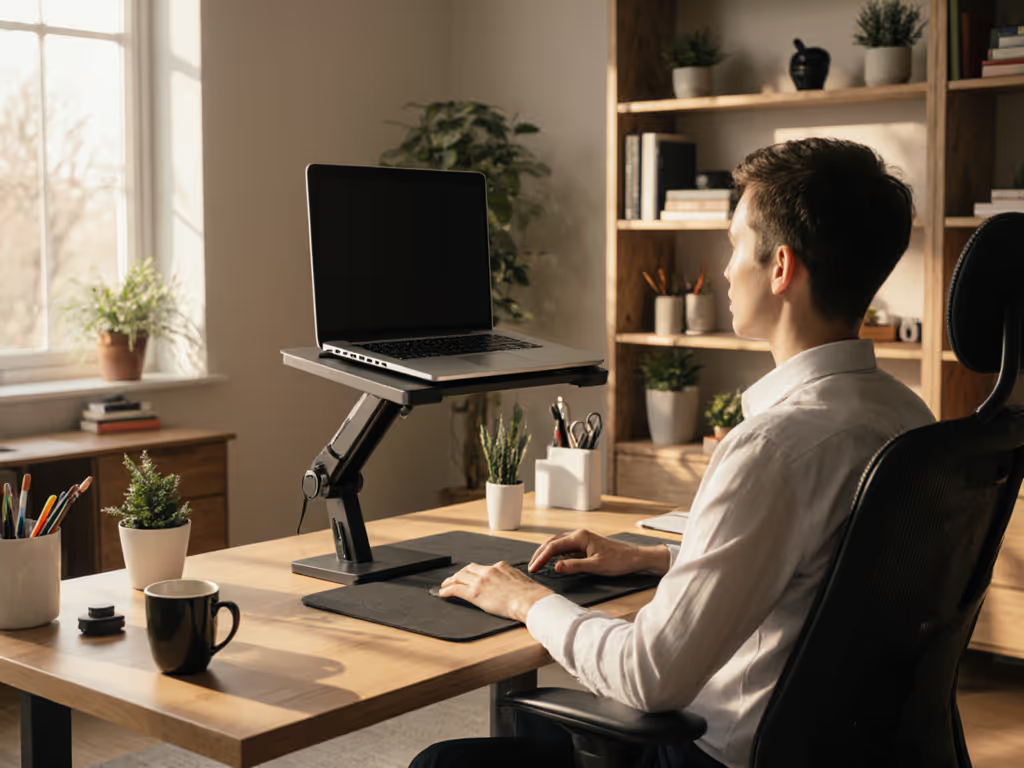
Instead, use an external keyboard and mouse paired with your laptop as secondary display on a stand. For a complete setup checklist that pairs stands with external input devices, see our ergonomic workstation guide. Your primary focus goes to the external monitor (at eye level) while your laptop remains as a reference display or for secondary tasks. This is the geometry that keeps your spine neutral[1][2][4].
If your workflow demands heavy laptop-keyboard interaction, position the laptop directly in front of you at eye level and relegate the external monitor to the side, but this inverts your typical home-office ergonomics and isn't recommended for prolonged use[3].
What's the correct viewing angle and tilt for a secondary laptop screen?
Your secondary laptop screen should be tilted between 15-20 degrees downward from horizontal[2][4]. This gentle angle reduces glare, aligns with your natural downward gaze when sitting upright, and minimizes the eye-focus distance between screens at different depths.
To set the tilt: position the laptop stand so you can view the screen without tilting your head up or down. Your neck should remain in a neutral, stacked alignment over your spine[4]. If you feel yourself craning your neck upward, the stand is too high; if you're drooping your head forward, it's too low.
Tilt matters because it's often overlooked. A screen tilted 0 degrees (flat) forces a flatter viewing angle and can trap glare from overhead lighting. A screen tilted too steeply (>25 degrees) feels cramped and reduces the useful screen area you can see without moving your eyes[2].
How should you position two screens side-by-side to minimize neck rotation?
If both your primary monitor and laptop sit at the same height and distance on your desk, place your primary display directly in front of you and angle your secondary screen (the laptop) 30-45 degrees inward[4]. This unified setup minimizes the neck rotation required to alternate between them.
Your eyes should naturally return to center (the primary screen); glancing at the laptop should feel like a small, comfortable eye movement rather than a full head turn[4]. If both screens are equidistant from your eyes (say, one at 60 cm straight ahead and one at 60 cm to the right), you're creating a wider visual field that demands more neck range.
In tight home-office spaces, this ideal setup isn't always possible. If your desk is shallow or your laptop stand must sit very close to your primary monitor, accept that you'll rotate your neck slightly when consulting the secondary screen, and compensate by taking a micro-break every 30 minutes to reset your posture[2].
What role does chair and desk height play in positioning your laptop stand?
Your laptop stand height is meaningless in isolation. It's one piece of a three-point system: desk height, chair height, and screen height must align[1].
Use this measurement hierarchy:
- Adjust your chair first. Sit upright; your feet should rest flat on the floor and your knees should form a 90-degree angle[1].
- Set your desk height. Your elbows should also form a 90-degree angle when your forearms rest on the desktop[1]. If your desk is fixed, adjust your chair height to satisfy the elbow rule, then use a footrest to bring your feet flat if needed.
- Position your laptop stand. Only after desk and chair are locked in place should you raise the laptop to eye level[1][4].
Skipping this order is why many people buy stands and find them "too tall" or "not tall enough." The stand is fine; the foundation wasn't set first.
How do you prevent wobble and maintain stability with a laptop stand on a shared desk?
Stability is non-negotiable because typing vibrations compound over time. A stand that wobbles 2-3 mm when you type creates microtrauma in your wrists and reinforces poor posture as you unconsciously tense up to steady the screen[1][4].
Test before buying: Place your laptop on the stand, rest your hands on the keyboard, and apply firm typing pressure. The screen should not visibly bounce. Heavier laptops (15-17 inches) demand stands with a wider, heavier base or a clamping mechanism. Lightweight aluminum stands often fail under sustained typing loads[4].
On shared desks (co-working spaces, library tables), ensure the stand's footprint doesn't overhang the desk edge. A stand that hangs 2 inches beyond the desk rear will tip when you rest your hands on the keyboard. Measure your desk depth before selecting a stand[4].
Actionable Next Steps: Your Three-Measurement Setup
Take 10 minutes this week to measure your way to comfort:
-
Measure your eye height. Sit normally in your chair. Have a friend or use a mirror to mark where your eyes naturally rest when looking straight ahead. Measure from the floor to this point. This is your baseline for all screen heights[1]. For precise measurements based on your body and desk, use our eye-level stand height calculator.
-
Measure your desk height and depth. From the floor to the desktop surface, and from the back edge of the desk to the front. These determine how much vertical lift your stand can provide and whether it will overhang[4].
-
Measure your ideal viewing distance. With your primary monitor in place, measure the distance from your seated eye position to the center of the screen. It should fall within 50-70 cm. Now note where your secondary screen (laptop) should sit to match this distance or sit at a compatible 15-20 degree angle[1][4].
Once you have these three measurements, any stand you choose will fit predictably. You'll know the exact height range it needs to cover, the angle it should support, and whether it will work with your existing desk. That confidence (rooted in your actual geometry, not generic advice) is where comfort begins.
Related Articles