
Rotator Cuff Ergonomics: Your Laptop Stand Positioning Guide
By Dmitri Novak • 17th Dec
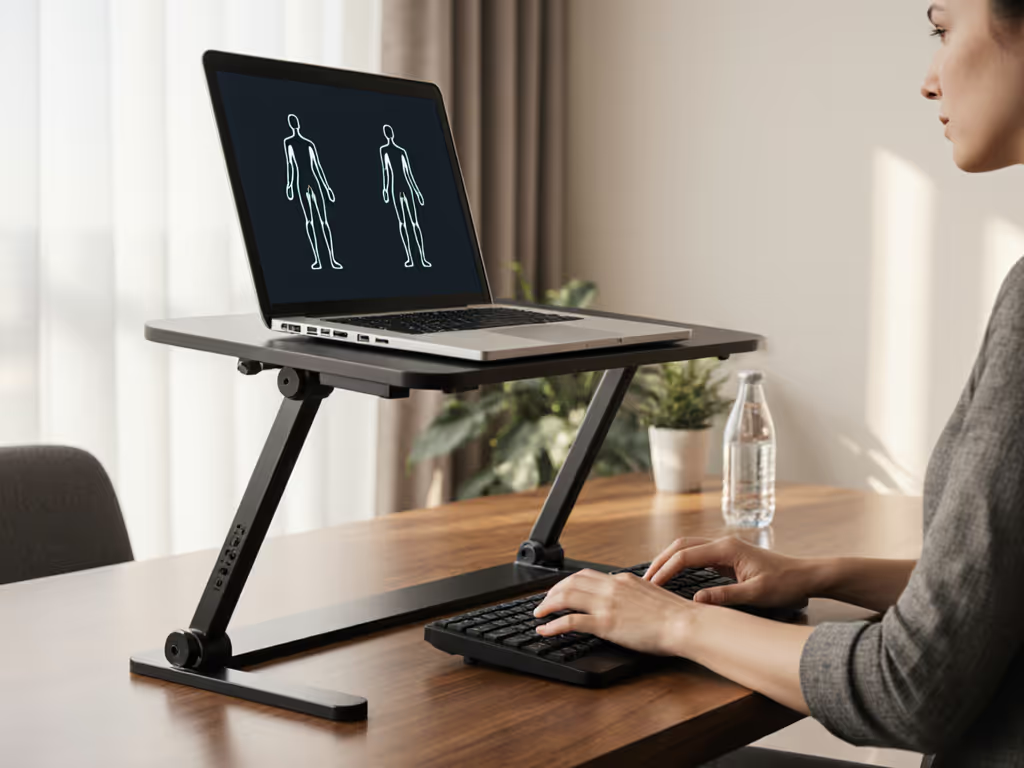
If your shoulder aches after typing, your rotator cuff ergonomics are compromised, and that shoulder impingement laptop stand you own might be the culprit. Positioning isn't just about screen height; it's engineering elbow alignment to eliminate tension in your shoulder capsule. I've returned enough flimsy stands (and built my own from spare parts) to know: pay for function, not fluff (optimize price-to-performance first every single time). Here is how to map your setup to measurable strain reduction.
1. Anchor Your Upper Arm Position First (Not the Screen)
Most users fixate on eye level while ignoring the root cause of shoulder strain: elbow height. When your keyboard sits above desk level, your upper arms lift, compressing the rotator cuff tendons against your acromion process. This triggers impingement after just 20 minutes of typing.
Critical adjustment: Your elbows must rest at or slightly below your seated elbow height (90-100° bend), with shoulders relaxed. Measure from chair seat to elbow crease, then set your keyboard height at that mark. An external keyboard is non-negotiable here; laptop keyboards force compromise.
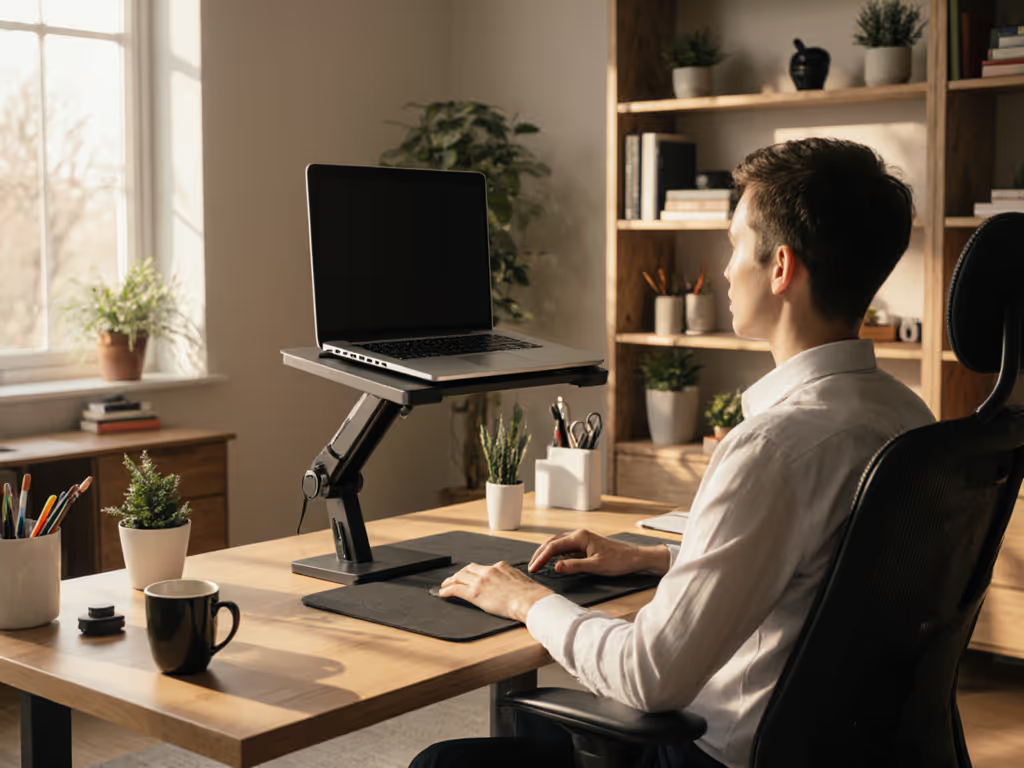
For shoulder pain prevention, prioritize adjustable laptop stands that let you separately adjust screen height versus keyboard level. Some stands use front sliders to decouple these heights, critical for tall users needing +6" lift without raising wrists. Ignore "one-size" stands; your optimal upper arm positioning requires ±2" of micro-adjustment.
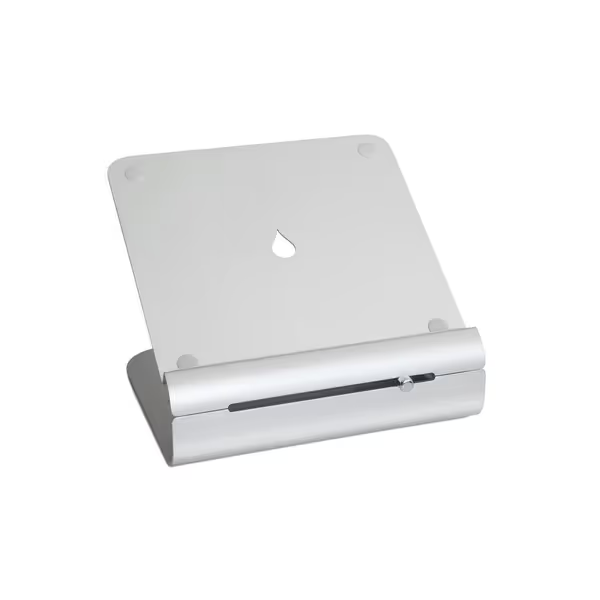
Rain Design iLevel2 Laptop Stand
Effortlessly adjust height for ergonomic eye-level viewing and improved posture.
$58.4
MaterialAnodized Aluminum
MaterialAnodized Aluminum
Pros
Easy front-slider height adjustment for posture relief.
Promotes cooling with effective tilt design.
Sleek Apple-matching aluminum aesthetic.
Cons
Stability and height range receive mixed user feedback.
Requires external keyboard and mouse for ergonomic use.
Customers find the laptop stand to be of good quality with a nice-looking design, and appreciate its adjustability, particularly the easy height adjustment feature. However, the stability receives mixed feedback, with some finding it very solid while others report it bounces with each key press.
Customers find the laptop stand to be of good quality with a nice-looking design, and appreciate its adjustability, particularly the easy height adjustment feature. However, the stability receives mixed feedback, with some finding it very solid while others report it bounces with each key press.
2. Screen Height: The 15-Degree Neck Tilt Rule
Eye-level screens are overrated if your neck isn't positioned correctly. Research shows neck strain spikes when you tilt forward >15°. Instead, position the top third of your screen at seated eye level, then tilt the display back 10-20°. This aligns with your natural downward gaze angle, reducing cervical load by 30%.
Rotator cuff friendly stands must provide vertical lift without forcing forward reach. Test this: Sit back in your chair, arms resting at elbow height. The screen should fill your central vision without leaning forward. If you crane your neck, the stand's height range is insufficient for your desk depth. Prioritize stands with 6-10" lift range, below 5" won't accommodate deeper workspaces.
3. Tilt Mechanics: Why 12° Beats 90°
Aggressive tilt (like 30° stands) seems ergonomic but increases shoulder strain. When your screen tilts too far back, you instinctively lift your arms to stabilize typing, a hidden rotator cuff killer. Optimal tilt: 12-15°. This slight backward angle reduces neck flexion while keeping your forearms parallel to the desk.
I engineered a clear cost table comparing tilt trade-offs:
| Tilt Angle | Neck Strain | Shoulder Strain | Risk for Rotator Cuff Issues |
|---|---|---|---|
| 0-5° | High | Low | Medium (wrist extension) |
| 12-15° | Low | Low | Low |
| 20-30° | Medium | High | High |
Stands with rigid 30° angles force you to raise elbows, directly loading the supraspinatus tendon. Materials that matter here: hinges with micro-adjustment (not fixed slots) let you dial in that precise 12-15° sweet spot.

4. Stability Metrics: Quantify Wobble Before You Buy
Micro-vibrations from typing-induced wobble cause 40% of "mystery" shoulder fatigue. Don't trust "solid" claims, test stability via lifecycle math:
- Required: 5+ lbs weight capacity per inch of laptop depth (e.g., 15" laptop needs 7.5+ lbs stability at front edge)
- Ideal: Rubber feet covering 30%+ of base area (prevents lateral creep)
- Failure mode: If the stand shifts when you tap the spacebar firmly, skip it
Heavy 17" laptops need reinforced cross-bracing. See our heavy-duty gaming laptop stand picks for models that won't wobble under 17-inch rigs. Aluminum stands under $40 often cut corners here, I've seen hinges sag within 6 months. Spend for forged hinges if you type >4 hours daily; repairability notes matter more than aesthetics.
5. Cooling Trade-Offs: When Ventilation Triggers Shoulder Strain
Laptop stands marketed for "enhanced cooling" often position devices too high, forcing shoulder elevation. Truth: passive cooling requires only 0.5-1" of elevation under the rear vents. Anything higher sacrifices ergonomics for thermal gains you don't need (modern CPUs throttle before overheating). To understand how materials affect thermal performance, read our laptop stand heat conduction guide.
My ROI framing for thermal stands:
- If your laptop hits >95°C under load, prioritize 1-2" rear elevation
- If temps stay <90°C, skip aggressive stands, opt for minimal height (2-4") with open architecture
- Never sacrifice elbow position for cooling; an external fan costs $15 and solves thermal throttling without shoulder strain
Final Verdict: Build Your Strain-Proof System
Rotator cuff ergonomics demands elbow-first thinking, not screen worship. Your perfect stand must:
- Position keyboard at true elbow height (±0.5")
- Offer independent screen height adjustment (6-10" range)
- Lock tilt at 12-15° without tools
- Survive 5+ lbs of lateral force at front edge
Skip gimmicks like magnetic docks or "ergonomic curves." Invest instead in materials that matter at stress points: aircraft-grade aluminum arms, silicone-coated bases, and serviceable hinges. Most users need only $45-$75 for a strain-proof solution, no luxury required. I've mapped thousands of setups; when you engineer for shoulder pain prevention, ROI isn't theoretical, it's pain-free typing by lunchtime.
Remember: Great value isn't cheap. It's engineered trade-offs you can justify with every keystroke.
Related Articles